
NKON ESS & Victron
From connection to control
A detailed guide to battery communication, inverter settings, solar charging and Dynamic ESS—with the original screenshots and clear explanations of why the system changes its behaviour.
Start with the system overview ↓Read the setting and its reason together. The values shown belong to the supplied NKON example. Match them to the exact battery, BMS, firmware and installation. Live BMS limits, household demand and energy-management settings can change actual operation.
How NKON ESS and Victron work together
An NKON ESS battery stores DC energy. A Victron MultiPlus or Quattro converts that energy to AC for the connected loads and can charge the battery from an AC source. A GX device, such as a Cerbo GX, coordinates the system and makes its operating data available locally and through the Victron Remote Management portal, usually called VRM.
The battery management system, or BMS, monitors the battery and communicates the charge and discharge limits that the Victron system must respect. An energy meter measures the exchange with the grid. Solar energy can enter through an AC-coupled PV inverter or through DC-coupled Victron MPPT solar chargers; the configuration depends on which arrangement is installed.
Battery and BMS
Store energy, monitor the cells and communicate the battery’s operating limits.
MultiPlus or Quattro
Manage power conversion between the battery and the AC installation.
GX device
Connect the battery, inverter/charger, meter and monitoring tools.
Grid meter
Measure import and export so the system can respond to actual site demand.
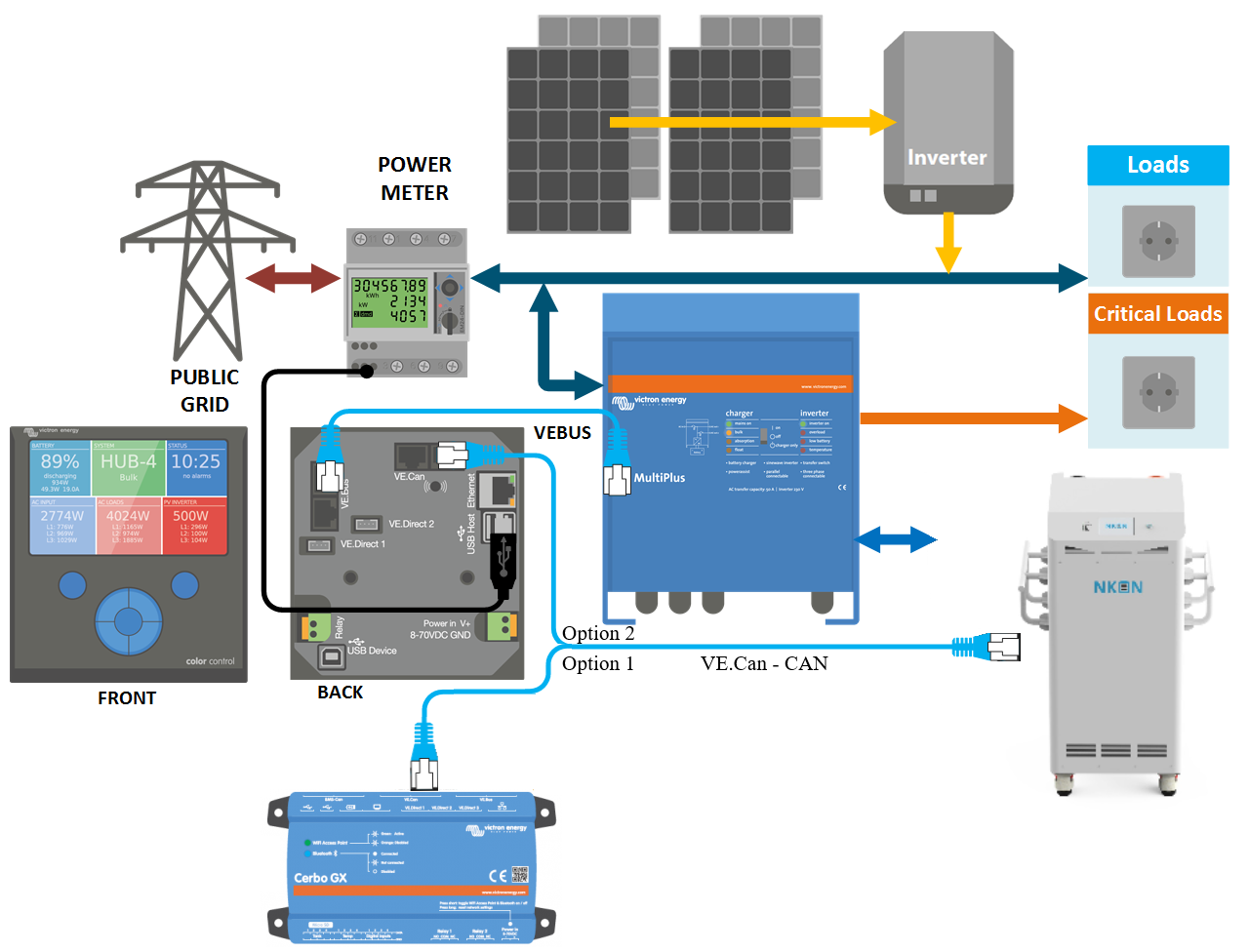
Scope of this guide. The source example uses an NKON ESS Pro of approximately 32 kWh, a Cerbo GX, Lynx distribution and three MultiPlus 3000 units. The same principles can help explain other compatible Pro and Eco installations, but capacity, current limits, firmware and wiring must be checked for the exact battery and inverter models. A 3000 VA inverter rating should not be treated as 3000 W of continuous output in every operating condition.
These diagrams explain the system architecture. They do not replace the installation drawings, protection design, cable sizing, earthing arrangements or grid-code settings for the site. Electrical installation and commissioning should be carried out by a qualified installer familiar with Victron systems and lithium batteries.
Check the hardware before changing settings
Start with a record of the battery model, BMS revision, number of modules, nominal voltage, rated capacity and permitted charge/discharge currents. Record the MultiPlus or Quattro models, the GX device and the meter. Use the battery’s current model-specific documents and compatible Victron firmware. Save the existing configuration before making changes, and plan updates so that a loss of power cannot interrupt them.
- Confirm that the selected battery revision supports the intended Victron integration.
- Check the DC protection, isolators, polarity, conductor sizes and connection torques against the component manuals and installation design.
- Identify which loads are connected to the inverter AC output and which remain on the grid side.
- Confirm the grid connection, phase arrangement and permitted import/export behaviour.
- Make sure all expected battery modules are online before deriving the available capacity or power.
- Keep the battery BMS connected and functional throughout normal operation.
Parallel batteries
The supplied guide describes a parallel arrangement with up to 16 units. Treat that as the scope of the documented arrangement, rather than a maximum for every NKON Pro or Eco revision. Check the current model-specific instructions for the permitted unit count, addressing, master battery, communication sequence and protection.
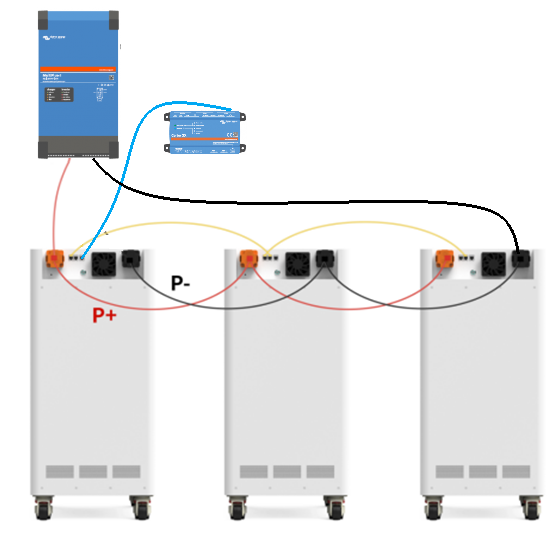
The source describes RS485 links between the battery modules using straight network cables, with the appropriate RS485 A/B ports connected in sequence. Follow the port labels and connection order for the actual battery. These links are separate from the CAN connection between the battery system and GX device. Similar RJ45 connectors do not make CAN, RS485, Ethernet and VE.Bus interchangeable.
Why adding batteries changes the configuration
Parallel batteries add capacity while nominal system voltage remains the same. They can also change the available current, but the safe system limit still depends on the BMS, online module count, cables, protection and inverter/charger ratings. Do not multiply a screenshot current by the number of batteries and assume the result is an approved limit.
Connect the battery to the GX device
The integration described here requires a GX device running Venus OS. It receives the battery’s limits and status and passes the appropriate control information to compatible Victron equipment. Establish reliable communication before relying on battery readings or configuring charging behaviour.
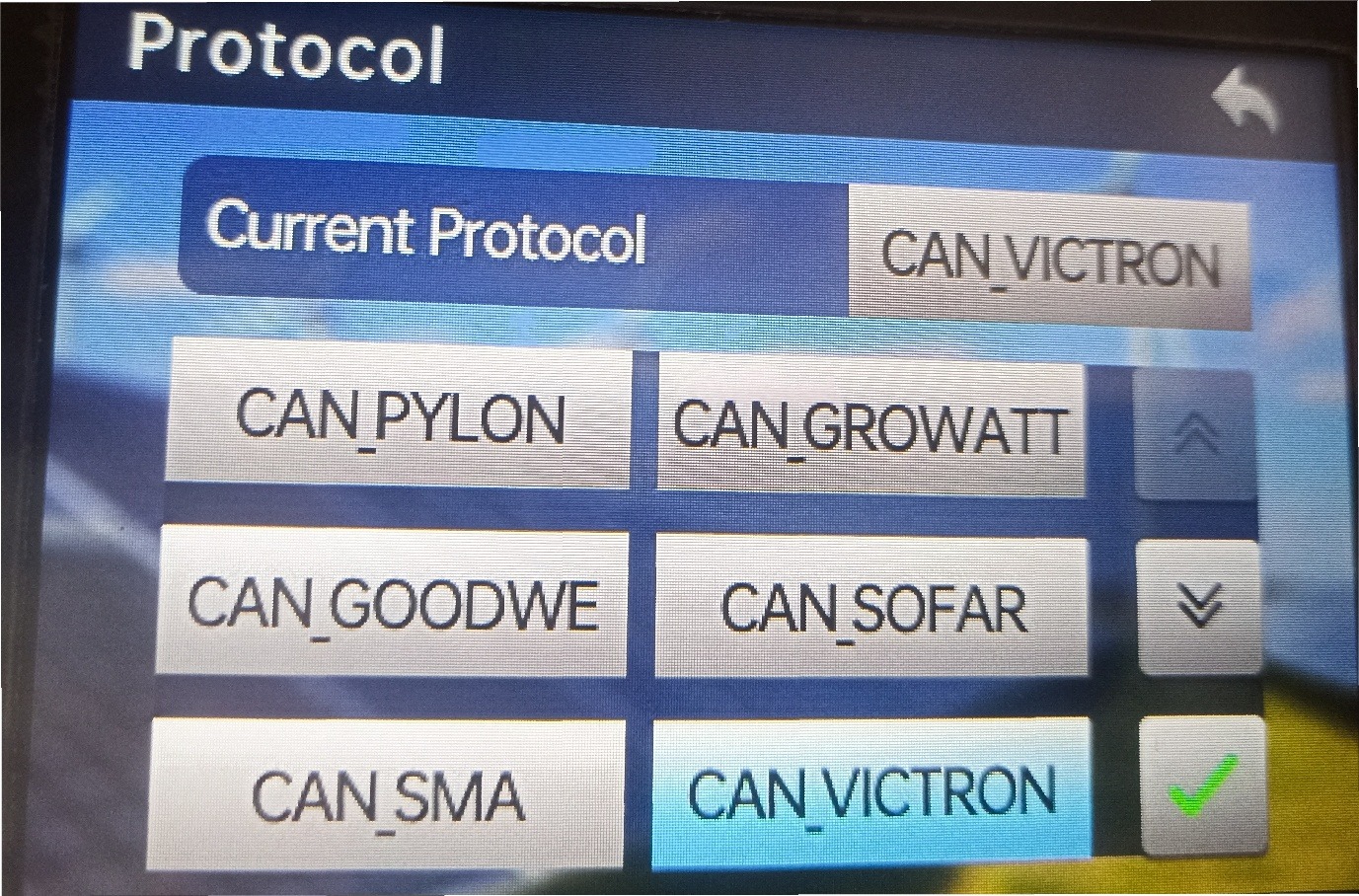
- Select the battery protocol. On the battery display, open Menu → Protocol → CAN_VICTRON and confirm the selection. The exact menu wording can vary with BMS firmware.
- Use the specified Type A cable. The supplied guide identifies a Victron VE.Can to CAN-bus BMS Type A cable, part number ASS030710018. Check the approved cable for the actual NKON revision; the current Victron cable reference also lists ASS030710118.
- Connect the labelled ends. Connect the Battery BMS end to the battery CAN port and the Victron end to the appropriate GX CAN interface. Do not connect it to VE.Bus or an Ethernet socket.
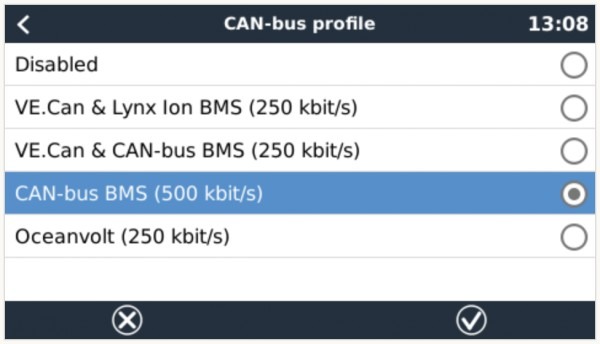
- Configure the GX CAN interface. Select CAN-bus BMS (500 kbit/s) on the interface used by the battery. The source shows Settings → Services → VE.Can; newer Venus OS versions can place connectivity settings elsewhere.
- Check bus termination and detection. Follow the GX and battery instructions for termination, then confirm that a managed battery appears in the device list and supplies plausible live readings.
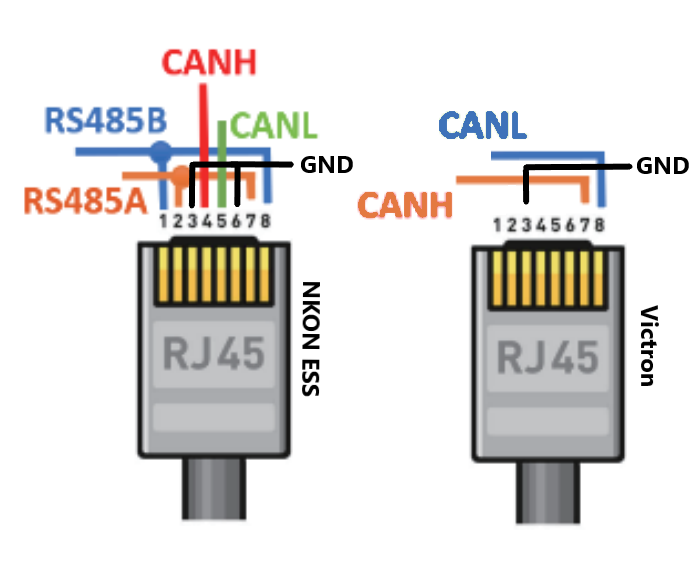
Cable diagram clarification. The source illustration and the current Victron Type A reference differ in their battery-side ground-pin assignment. Do not use this illustration as a cable-manufacturing drawing. Confirm the correct pre-made cable and pinout for the exact battery revision before connecting it. Victron CAN-bus BMS cable reference ↗
Why the CAN speed matters
The battery connection in this guide uses 500 kbit/s. The VM-3P75CT meter uses 250 kbit/s when connected by VE.Can. They therefore need separate correctly configured CAN interfaces, or an Ethernet connection for the meter. Two RJ45 sockets on a GX device can belong to the same CAN interface; they do not necessarily provide two independent networks. Victron connection guidance ↗
If communication is lost, investigate the cable, selected interface, termination, protocol and firmware. The system must respond safely to missing BMS information. The source mentions a five-minute shutdown period, but the actual response must be verified for the specific equipment and firmware; it should not be used as a universal timeout guarantee.
Understand the limits before adjusting them
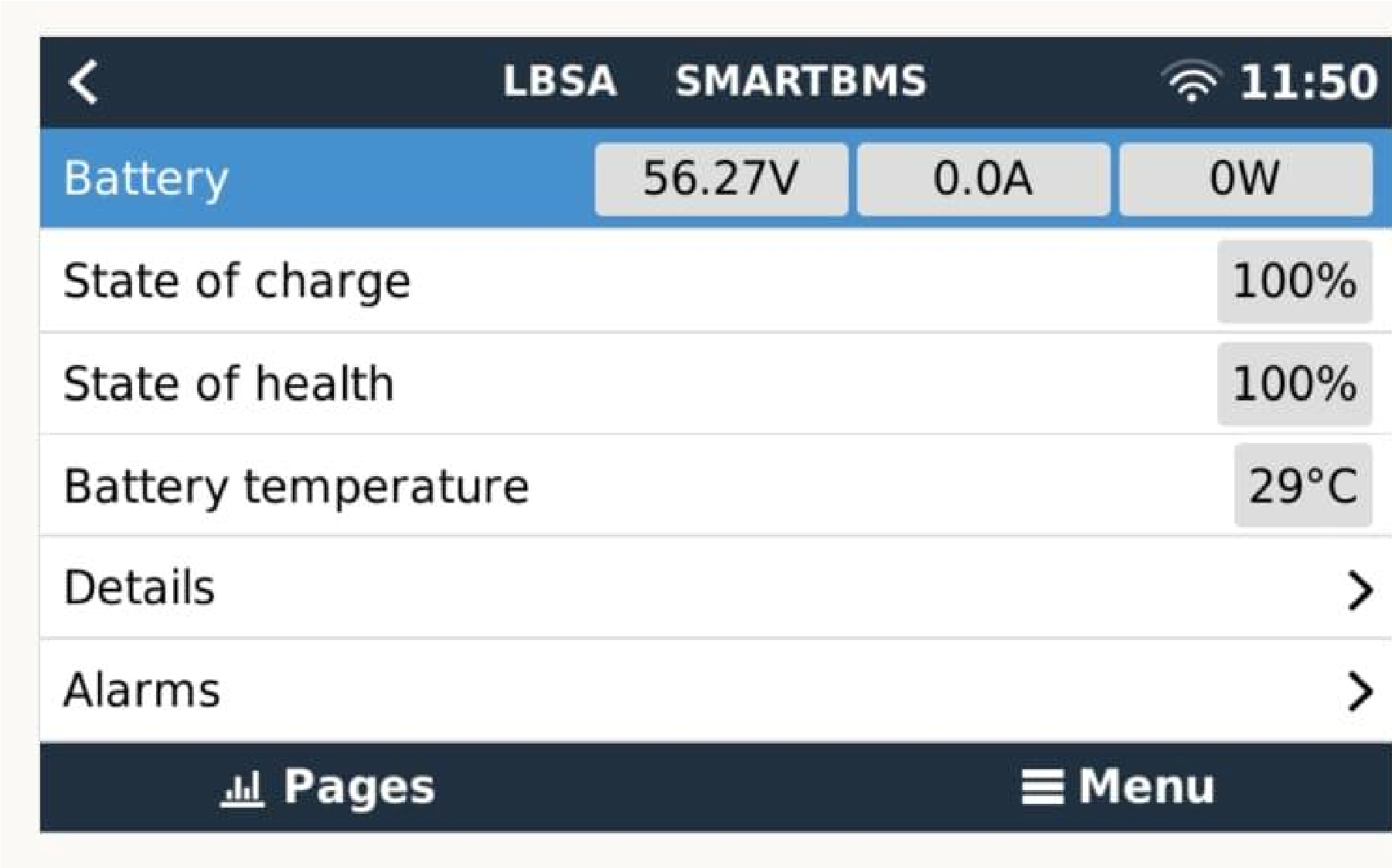
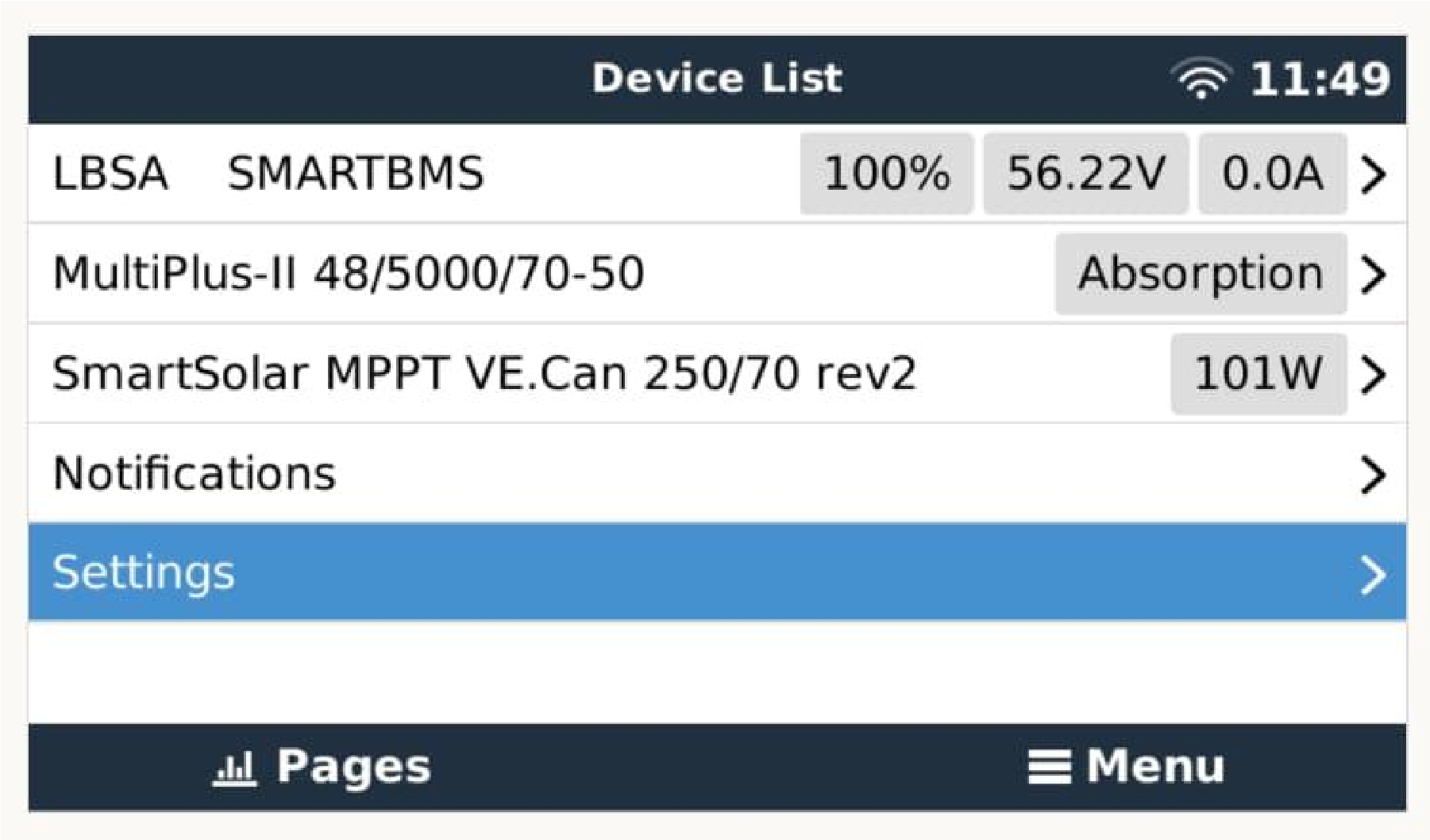
Open the battery in the GX device list. Check the overview, cell information and parameters. The supplied screenshots use example device names, including LBSA SMARTBMS and BMS16S300A-SP136. The name shown by an actual NKON battery can depend on its BMS and firmware. A visible battery name or SoC reading is only the first check; the limits and alarms must also be communicated correctly.
| Parameter | Meaning | What a change can mean |
|---|---|---|
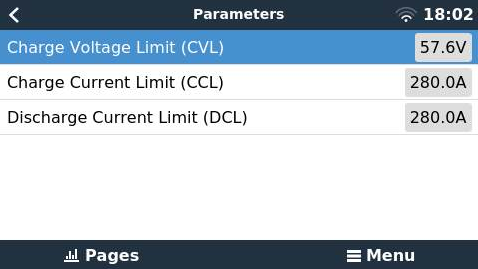
| CVL Charge Voltage Limit | The voltage limit requested by the BMS for charging. | The BMS may adjust the requested target as its operating conditions change. It is not necessarily the local absorption setting. |
| CCL Charge Current Limit | The maximum charge current the BMS permits at that moment. | Charging may slow as the battery approaches full charge or when the BMS restricts charging. |
| DCL Discharge Current Limit | The maximum discharge current currently permitted by the BMS. | Available battery power can fall at low SoC or when the battery restricts discharge. |
| SoC State of Charge | The battery’s estimate of remaining charge, expressed as a percentage. | It helps determine daily cycling and reserve behaviour; it is not the same as voltage. |
| SoH State of Health | The health estimate reported by the BMS, where supported. | Interpret it according to the battery manufacturer’s method, rather than as a direct remaining-life guarantee. |
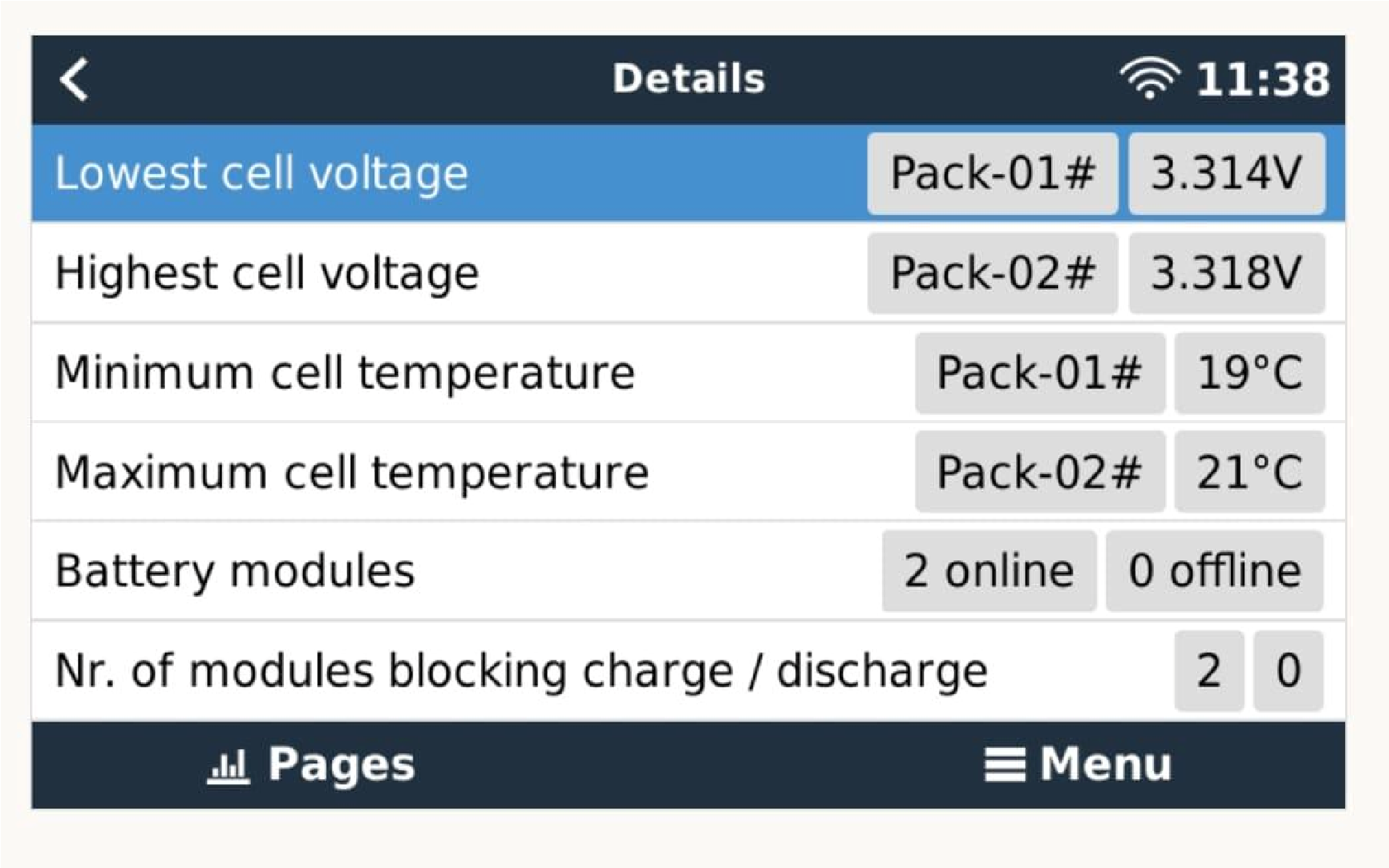
Also check the highest and lowest cell voltage, temperature readings, installed/online module count and any module that blocks charging or discharging. These details often explain a reduced current more clearly than the overall SoC alone.
About the voltage ranges in the source. The original text gives several inconsistent CVL ranges and typical values. This page therefore does not turn those ranges into a fixed operating specification. Use the current battery instructions and the BMS’s valid live limits for the installed revision.
Why the numbers move during normal operation
Approaching full charge
The BMS can reduce the charging allowance near the top of charge. A lower current can be intentional even when the solar array or inverter could provide more.
Cell balancing
Cells do not always reach the same voltage at the same time. The battery may need time near full charge to balance; the charging pattern can differ from a normal daily cycle.
Temperature
Permitted operating currents depend on the battery’s allowed temperature range and protection logic. Check the exact model’s limits and BMS alarms before changing a current setting.
Reserve and protection
A minimum SoC, an active BatteryLife limit or a BMS restriction can prevent discharge even when energy remains in the battery.
Solar and household demand
Battery power is the result of available generation, demand and permitted grid exchange. It does not have to remain constant throughout the day.
Dynamic ESS scheduling
A forecast, a price period or a scheduled balancing charge can change the requested operation without changing the battery’s protective limits.
VEConfigure and the ESS Assistant
Use the configuration method appropriate to the installed MultiPlus or Quattro system. In a parallel or three-phase installation, first confirm the system arrangement and applicable grid code. The settings below reproduce the supplied NKON example so that each value has a clear purpose. They are not generic LiFePO₄ defaults for unrelated batteries.
Grid connection matters. A valid grid-code configuration is needed for grid-connected ESS operation, including systems where deliberate export is not intended. The installer must select the applicable code and verify the resulting operation. Victron ESS configuration manual ↗
Inverter tab
| Setting | Value in the supplied guide | Purpose |
|---|---|---|
| DC input low shutdown | 43.20 V | Low-voltage shutdown setting in VEConfigure. |
| DC input low restart | 48.00 V | Restart level associated with the inverter’s low-voltage settings. |
| DC input low pre-alarm | 46.40 V | Low-battery warning threshold. |
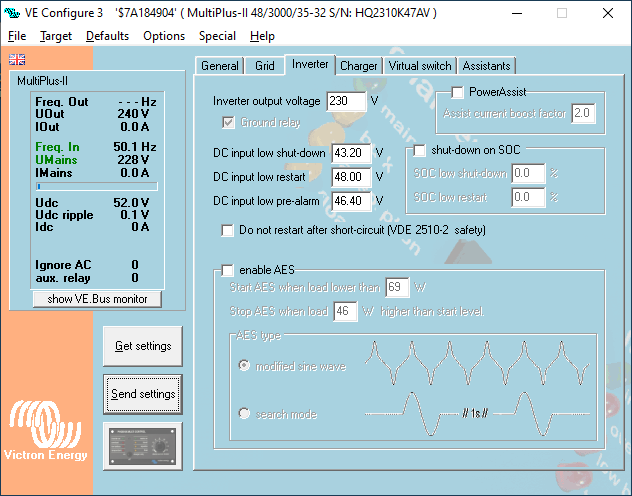
Which limit actually controls the system? These values are not the complete protection strategy. When the ESS Assistant’s dynamic cut-off is active, all three Inverter-tab settings—low shutdown, restart and pre-alarm—are overridden by the Assistant’s dynamic cut-off and restart settings. The three values above document the source configuration; they are not the operative ESS thresholds. Do not treat the 43.20 V entry as a target discharge voltage or as permission to override a BMS stop request.
Charger tab
Select the lithium iron phosphate battery type and enable the lithium setting as shown in the guide. Then check the charging profile and the maximum charger current.
| Setting | Source example | Explanation |
|---|---|---|
| Battery type | Lithium iron phosphate / LiFePO₄ | Matches the chemistry of the documented battery. |
| Absorption voltage | 57.60 V | Local configured charging voltage. |
| Float voltage | 55.20 V | Local configured float value. |
| Absorption time | 1 hour | Local duration shown in the source. |
| Charge current | Installation-specific | Must fit the battery and the combined charging sources. The screenshot’s 35 A is an example. |
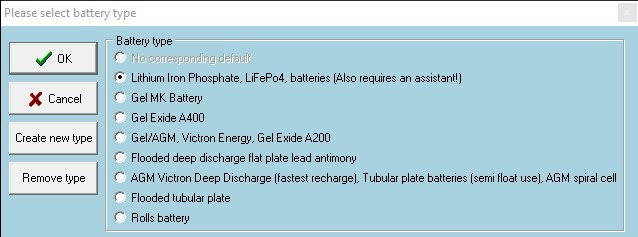
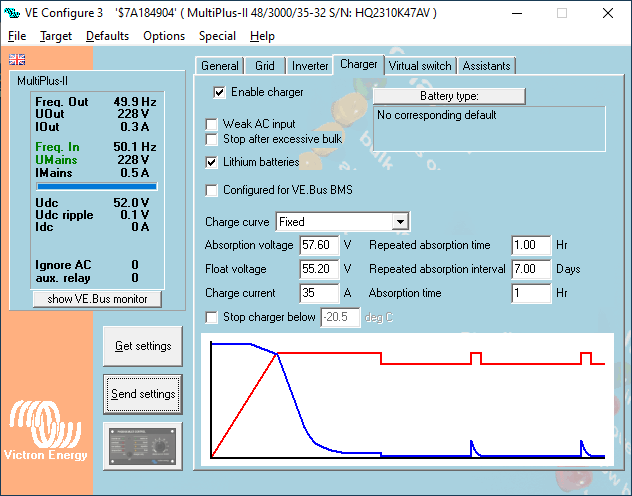
Why the displayed voltage can differ from 57.60 V
With a communicating managed battery and the appropriate DVCC configuration, the BMS supplies the live charge target. The saved charger profile does not force the system to ignore that target. Check the active BMS parameters when investigating a different voltage. Victron DVCC control explanation ↗
Virtual switch and Assistant selection
On the Virtual switch tab, select Do not use VS. Open Assistants, add the ESS Assistant and start its configuration. The supplied procedure uses the ESS Assistant rather than the older virtual-switch method.
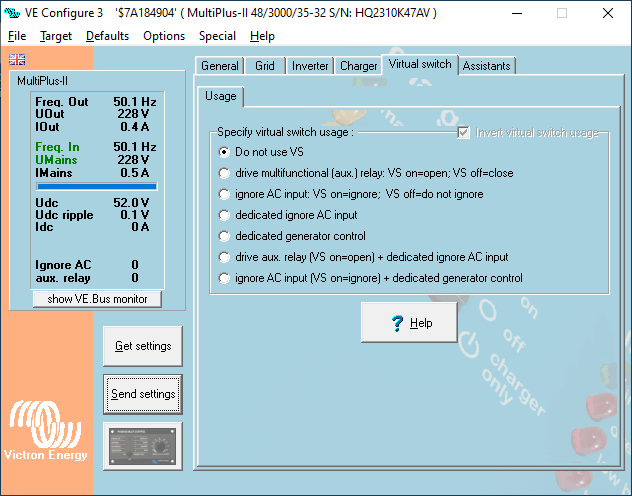
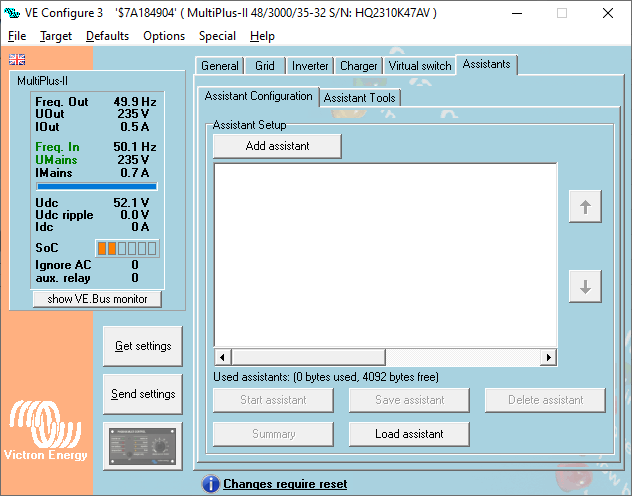
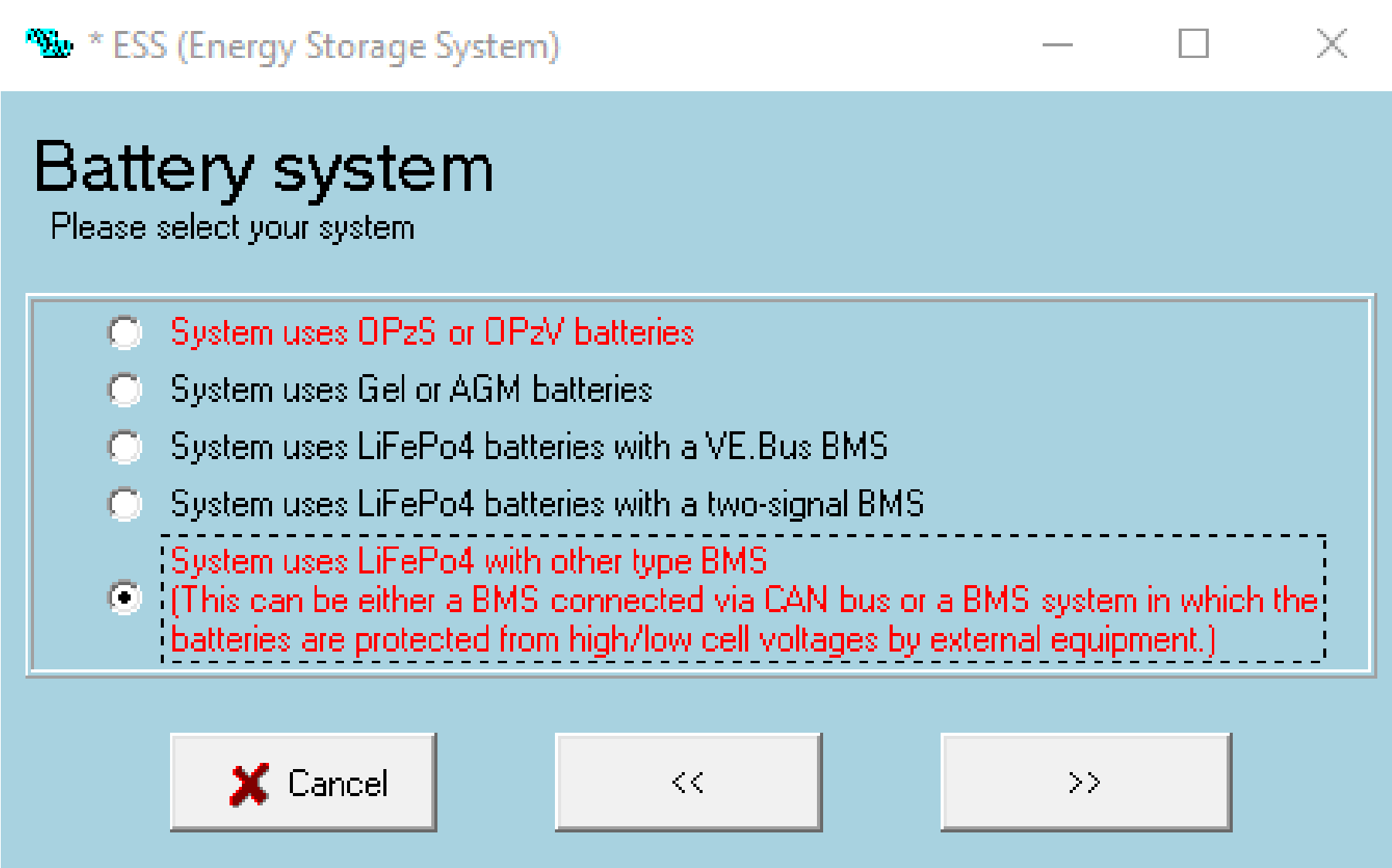
- Select the battery system. Choose System uses LiFePO₄ with other type BMS, as shown in the source.
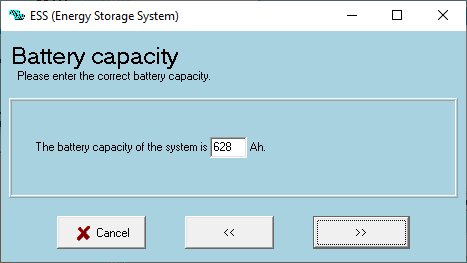
- Enter total capacity in Ah. Use the rated Ah capacity of the complete battery bank at its nominal voltage. For the example, 628 Ah × 51.2 V = 32,153.6 Wh ≈ 32.15 kWh. Add the Ah capacities of approved parallel modules; do not add their voltages.
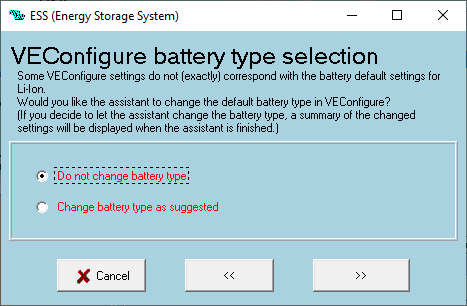
- Keep the chosen battery type. Select Do not change battery type at the relevant Assistant step.
- Check sustain voltage. The supplied example uses 50.00 V.
- Check the dynamic cut-off curve. The example sets all four displayed points to 46.00 V.
- Check restart offset. The example uses 2.00 V above cut-off(0).
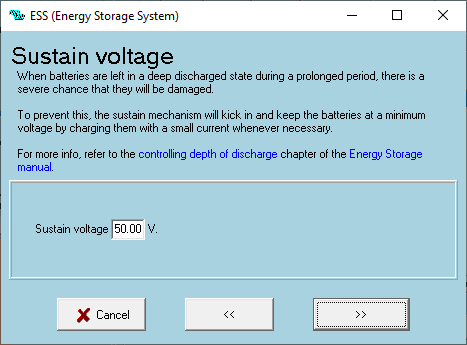
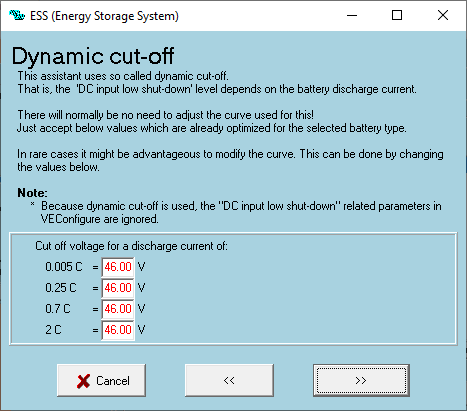
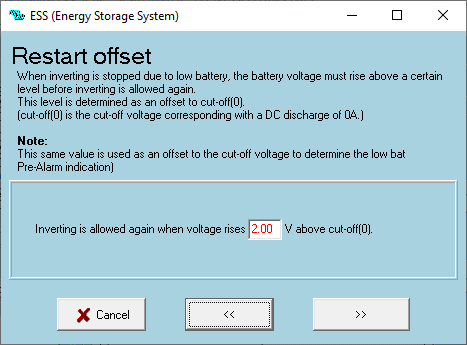
Source correction. The original prose labels the last dynamic cut-off point as 1 C, while its screenshot labels it 2 C. The image above is retained unchanged and its caption follows the visible label. Confirm the actual Assistant fields and approved NKON values for the installed revision before commissioning.
Why cut-off, sustain and restart are separate
Dynamic cut-off relates shutdown voltage to discharge current; the source uses a flat 46 V curve. Sustain acts after the battery is considered discharged, using available charging to avoid leaving it deeply discharged. It is not the initial discharge-stop threshold. The restart offset requires voltage recovery before inverting resumes, reducing repeated stopping and restarting near the threshold. Victron cut-off and sustain explanation ↗
A C-rate expresses current relative to capacity: for a 628 Ah battery, 0.25 C corresponds to 157 A. This definition helps explain the curve; it does not mean the battery or inverter is approved to operate at every C-rate shown in the Assistant.
Leave the internal battery monitor enabled. The NKON guide warns that disabling it on the VEConfigure General tab after configuring ESS clears the stored battery capacity. The GX device can still use the managed battery’s SoC as its system measurement.
Connect and verify the VM-3P75CT meter
A grid meter lets the ESS see the site’s actual import and export. Its measurement boundary, phase assignment and current-transformer direction must match the installation. A reversed reading can cause the system to respond to the wrong condition.
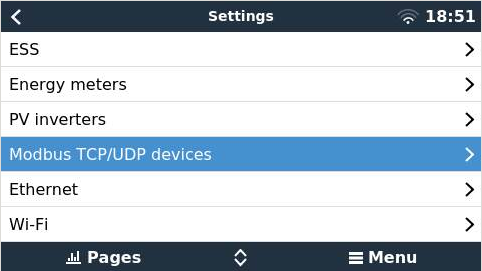
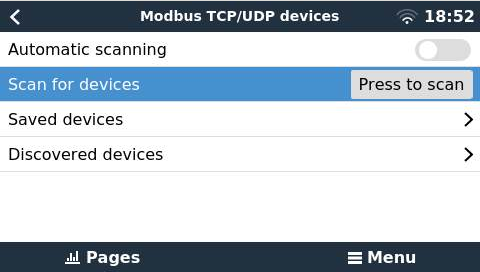
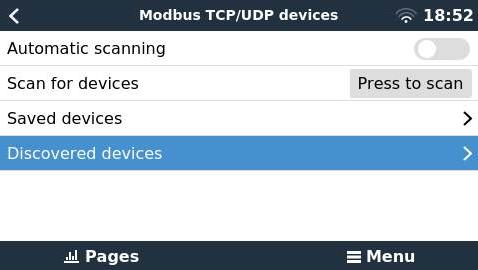
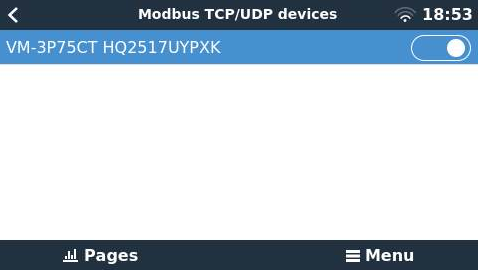
Configure the VM-3P75CT in VictronConnect with Role: Grid meter, select the correct phase arrangement and confirm the network settings. For Ethernet discovery, connect the meter and GX device to the same local network; DHCP is normally the starting point. The source screenshots show discovery through the GX device’s Modbus TCP/UDP menu; newer versions may use Settings → Integrations → Modbus Devices. VM-3P75CT configuration guide ↗
- Open Modbus TCP/UDP devices in the GX settings.
- Select Scan for devices and start a scan.
- Open Discovered devices.
- Enable the discovered VM-3P75CT, then confirm it appears in the device list with the correct role.
Why the meter needs a practical check
Confirm sensible total and per-phase readings with a known load. Match each current transformer to its intended input and phase voltage, and follow the marked direction in the meter manual. The installer should check the readings before enabling automatic power control. Meter installation and CT guidance ↗
If the meter is connected by VE.Can instead, use the correct 250 kbit/s interface and termination. Keep it separate from the battery’s 500 kbit/s CAN-bus BMS connection.
GX device and DVCC settings
After the battery is detected, open its Parameters page and compare the reported CVL, CCL and DCL with the battery’s condition and model-specific limits. Check the online module count. A fully charged battery can legitimately report a reduced CCL.
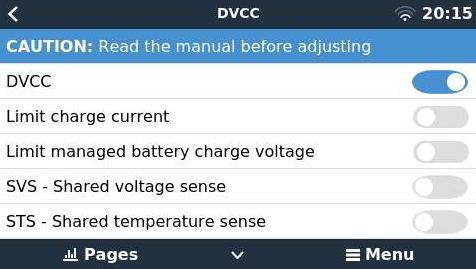
DVCC stands for Distributed Voltage and Current Control. In this integration it coordinates compatible chargers using the managed battery information. The following table documents the source configuration, including settings that should be reviewed rather than copied without context.
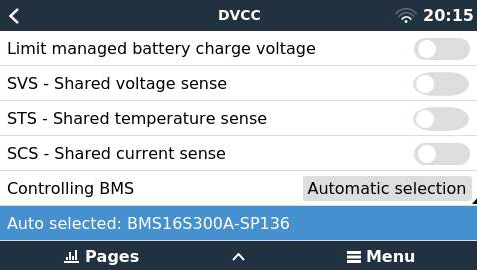
| Setting | Shown in the source | How to interpret it |
|---|---|---|
| DVCC | On | Enables coordinated control for the documented integration. |
| Limit charge current | Off | No additional user cap is shown. Decide whether the installation needs a lower system cap. |
| Limit managed battery charge voltage | Off | No extra user voltage cap is shown; do not override the BMS by guesswork. |
| SVS — Shared Voltage Sense | Off | Follow the compatibility instructions for the installed managed battery. |
| STS — Shared Temperature Sense | Off / forced off | The BMS integration can determine whether this option is available. |
| SCS — Shared Current Sense | Off | Retain the source configuration unless the applicable compatibility instructions specify otherwise. |
| Controlling BMS | Automatic selection | Verify that the auto-selected battery is the intended battery system. |
Why a current limit can still apply when the switch is off
“Limit charge current: Off” removes the additional user cap; it does not remove BMS control. Normally the lower applicable BMS/user limit is used, while device current limits remain relevant. Uncontrolled chargers are not automatically included in that coordination.
DC solar export exception. When DC-coupled PV export is enabled, the DVCC charge-current cap is not applied to the relevant MPPTs in the usual way. Their local current limits and voltage control remain important. Review MPPT limits before enabling this export option. Victron DVCC limits and ESS exception ↗
ESS modes, reserve and grid settings
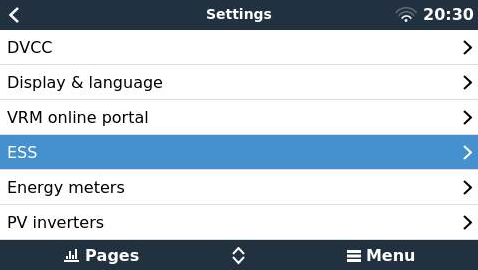
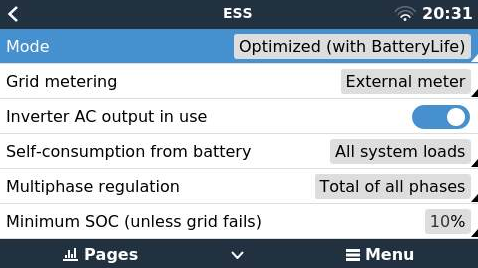
Open Settings → ESS. Decide whether the installation primarily cycles energy for self-consumption or keeps the battery ready for a grid outage. Then set the meter, load arrangement and reserve to match the site.
| Mode | Behaviour | Use in this guide |
|---|---|---|
| Optimized with BatteryLife | Uses the battery for ordinary cycling and lets BatteryLife adapt the effective reserve. | The supplied NKON procedure requires BatteryLife for cycled batteries. |
| Keep batteries charged | Prioritises maintaining the battery for outages rather than normal daily discharge. | The source’s alternative for a backup-oriented installation. |
| External control | Hands ESS operation to an external controller. | Do not select this mode merely because a dashboard status displays the same phrase. |
For the pictured grid-meter installation, select the appropriate external meter. Set whether the inverter AC output is used and whether battery energy serves all measured system loads or only critical loads. Confirm the phase-control strategy for the actual installation; the screenshot’s Total of all phases is an example.
Minimum SoC and the active SoC limit
The configured minimum SoC is the normal reserve setting while the grid is present. BatteryLife can raise the active limit above it. In the source screenshots, the configured minimum is 10% while the active limit is 15%. Those two readings are therefore not inherently contradictory.
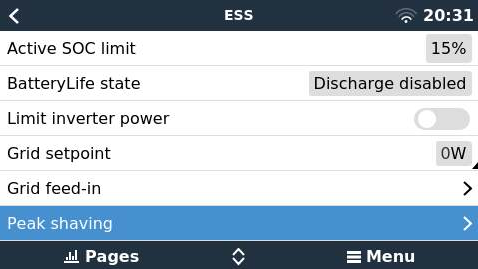
Why the reserve can increase
BatteryLife adapts the effective discharge floor when the battery remains insufficiently charged. This preserves more charge and creates opportunities for recovery. A higher active limit reduces energy available for daily discharge. It does not mean the configured minimum has been lost, and it does not promise a full charge every day. BatteryLife and depth-of-discharge explanation ↗
During a grid outage, ordinary minimum-SoC behaviour changes: backup operation remains subject to battery protection and the system’s shutdown criteria. The installer must explain which circuits are backed up and test the approved outage behaviour.
Peak shaving
Peak shaving lets the battery assist when AC demand would otherwise exceed the configured threshold. The source shows Always, with system AC import and export current limits disabled. This is an example configuration, not a reason to disable limits on every installation.
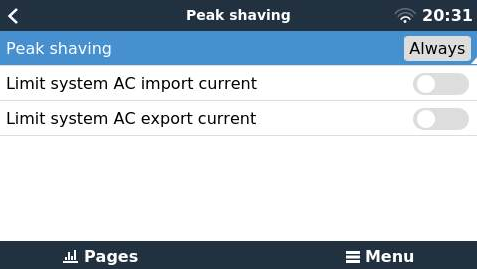
Always can use energy below the ordinary minimum SoC to support peaks. That may reduce the energy reserved for an outage. Choose the setting and AC current limits together with the site’s connection rating, load profile and backup priority. ESS peak-shaving configuration ↗
Grid feed-in and solar topology
The guide shows AC-coupled PV — feed in excess: Enabled, DC-coupled PV — feed in excess: Disabled, and Limit system feed-in: Disabled. First identify how the solar array is connected. AC-coupled solar reaches the AC installation through a PV inverter; DC-coupled solar charges the battery/DC bus through an MPPT.
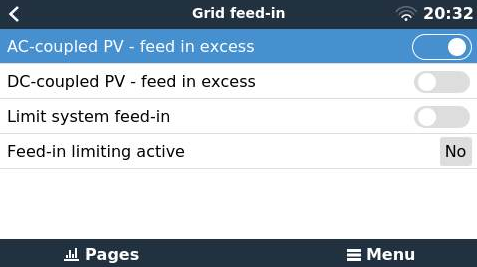
Enable feed-in only where the connection, contract and installation allow it, and configure required limits in the appropriate control layer. Simply having solar panels is not a reason to enable DC-coupled export. The source’s Feed-in limiting active: No is a status reading, not proof that unrestricted export is permitted.
MPPT solar charger settings
This section applies when Victron MPPT chargers are connected to the battery/DC bus. It does not describe the setup of a separate AC-coupled solar inverter.
- Select User Defined as the battery preset.
- Check the source values: 57.60 V absorption and 55.20 V float.
- Enable expert mode where required to access the relevant fields.
- Select a fixed absorption curve with an absorption time of 1 hour, as in the supplied guide.
- Set each charger’s maximum current so that the complete installation remains within the permitted charging capability.
- Verify that the charger participates in the intended managed-battery control and that BMS communication and alarms are working.
The local charging profile and the BMS’s live commands serve different roles. A stored absorption value is not evidence that the charger should continuously drive the battery to that voltage. When several chargers operate together, check the combined current and the DC-export exception described in the DVCC section.
Why solar charging may be limited
Available sunlight is only one constraint. Household demand, battery limits, the battery’s state of charge and the permitted export path also affect where the energy can go. Investigate these conditions before increasing a charger’s current limit.
Dynamic ESS in the VRM Portal
Dynamic ESS adds planning to the NKON ESS and Victron system. It coordinates charging, stored energy and permitted export using your electricity tariff, expected consumption and solar forecast. It can charge during favourable periods and reserve energy for later use. Results depend on your contract, weather, consumption and equipment; switching it on does not guarantee savings. A correct installation and reliable battery communication remain the starting point.
Before you configure Dynamic ESS
Complete the standard ESS configuration first. Confirm that the GX device sees the NKON battery, reports credible state of charge and receives its charge and discharge limits. Check grid-meter readings and the installation’s import/export direction. Use compatible, up-to-date stable firmware, a working VRM connection and an account authorised to change the installation.
Set the installation location correctly so solar forecasting is relevant. Consumption history helps the system learn the installation’s behaviour. Dynamic ESS also supports suitable fixed time-of-use tariffs; a dynamic contract is not the only possible arrangement. Check the country, provider and tariff options currently available in VRM rather than relying on a fixed country list. How Victron Dynamic ESS plans energy use.
On the GX device, the Dynamic ESS setting for operation through VRM is Auto. Configure the schedule in VRM and avoid running a second controller that competes with it. Victron Dynamic ESS mode reference.
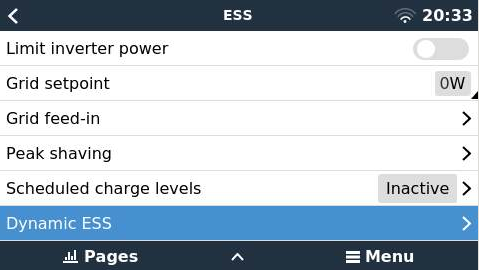
Open the installation and setup wizard
- Sign in to the VRM Portal and select the correct installation.
- Open Settings, then Dynamic ESS.
- Work through the system, battery, buying-price, selling-price and confirmation steps.
The screenshots show the source document’s interface. Menu names and placement can change between VRM versions, so identify each field by its function.
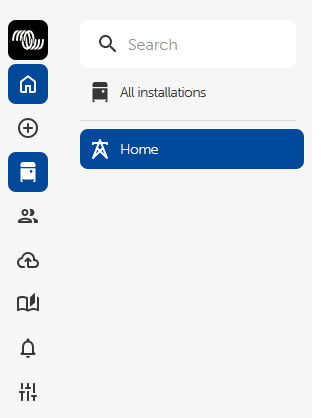
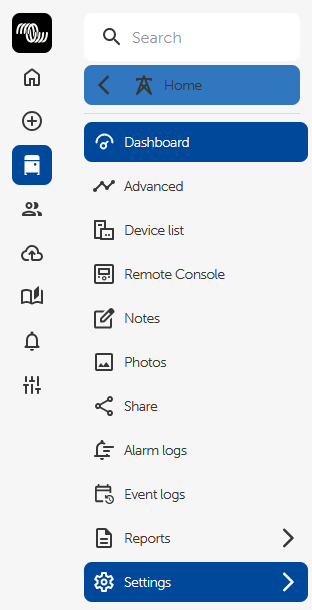
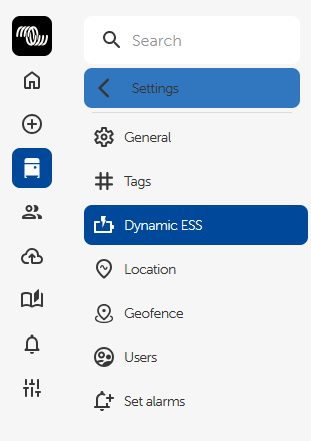
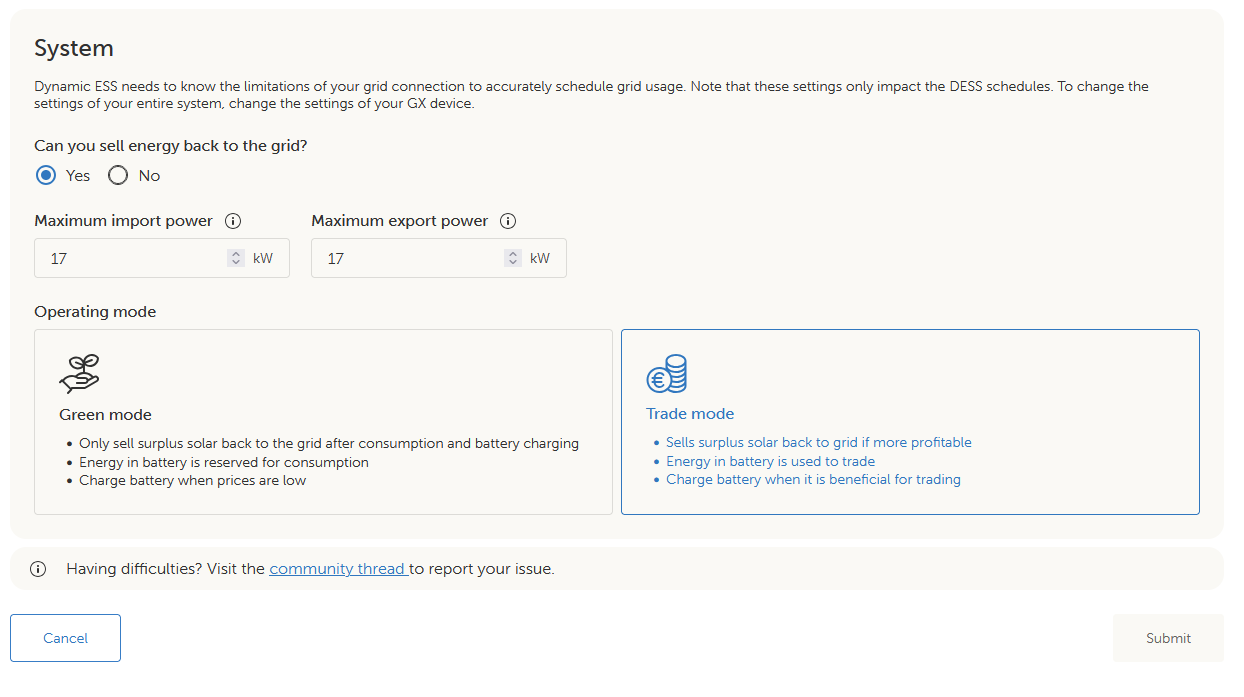
System settings and operating mode
Answer Can you sell energy back to the grid? using your actual connection agreement and energy contract. Enter the installation’s import and export capabilities. The source guide uses 17 kW as an example; it is not a setting for every installation. Your installer must account for the grid connection, phase arrangement and equipment.
Green mode prioritises household consumption and battery charging before exporting surplus solar energy. Battery energy is reserved for consumption, while useful charging from the grid can still occur. Trade mode also uses battery storage for permitted export when the price calculation favours it. Choose according to your objective and contract. Victron’s explanation of Green and Trade mode.
Why power settings matter. The wizard describes the power available for planning. These entries are not instantaneous protective limits. Configure applicable GX ESS import/export current limits separately, and retain the correctly designed electrical protection. Victron Dynamic ESS manual.
Battery capacity and charge or discharge power
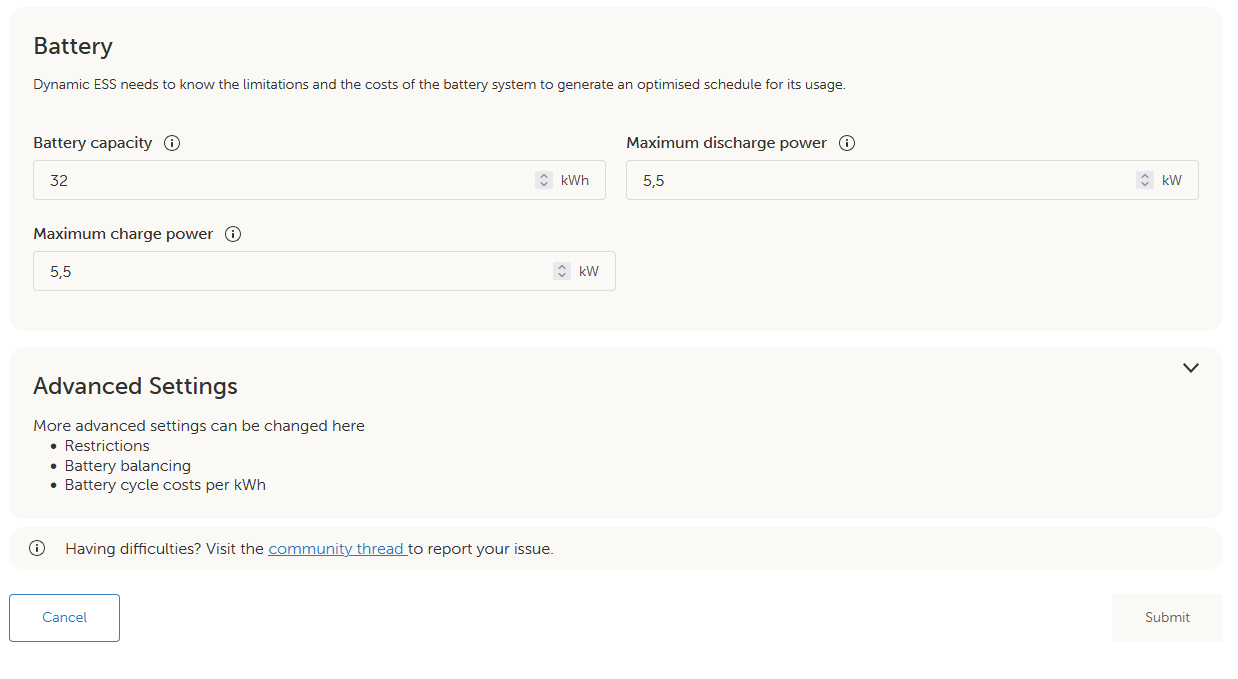
Enter the total battery capacity in kWh. The guide’s 32 kWh example is an energy quantity: it describes storage capacity. Charge and discharge limits are in kW: they describe the rate of energy transfer. The illustrated 5.5 kW values must be replaced with values appropriate to your battery bank, inverter system and installation.
For a parallel bank, use its verified combined capacity. Do not assume that adding batteries increases inverter power. Likewise, a larger inverter does not increase the battery’s permitted current. The battery-management system can reduce available charging or discharging even when the configured maximum is higher.
Why charging power changes. A configured maximum is not a demand to charge continuously at that rate. Actual operation also depends on battery limits, the target state of charge, household loads and solar production. DESS can adjust its response when actual production or consumption differs from the forecast. Victron’s explanation of improved forecast handling.
Battery cycle cost and balancing
The guide uses this simplified allowance for battery wear:
Battery cycle cost per kWh = purchase price ÷ (estimated full cycles × battery capacity in kWh).
For an illustrative €3,000 battery with 6,000 equivalent full cycles and 30 kWh capacity, the result is approximately €0.0167/kWh. These are calculation examples, not specifications for an NKON battery. Use supported cycle-life assumptions and their stated operating conditions. This allowance represents battery use; it is separate from the electricity purchase tariff.
Review the advanced restrictions and balancing options. A restriction can prevent an energy flow that your contract does not permit. Periodic balancing charges give the battery an opportunity to reach full charge; select the interval and duration using the applicable NKON battery guidance. A balancing period can explain why the battery remains fuller than expected. Victron’s balancing feature explanation.
The supplied NKON guide requires Optimized with BatteryLife for batteries used in regular cycling. Retain that NKON requirement. If the active SoC limit rises, review charging history and the battery’s condition with the installer before changing BatteryLife. Its reserve management and DESS balancing serve related purposes, but should not be treated as interchangeable settings.
Configure buying and selling prices
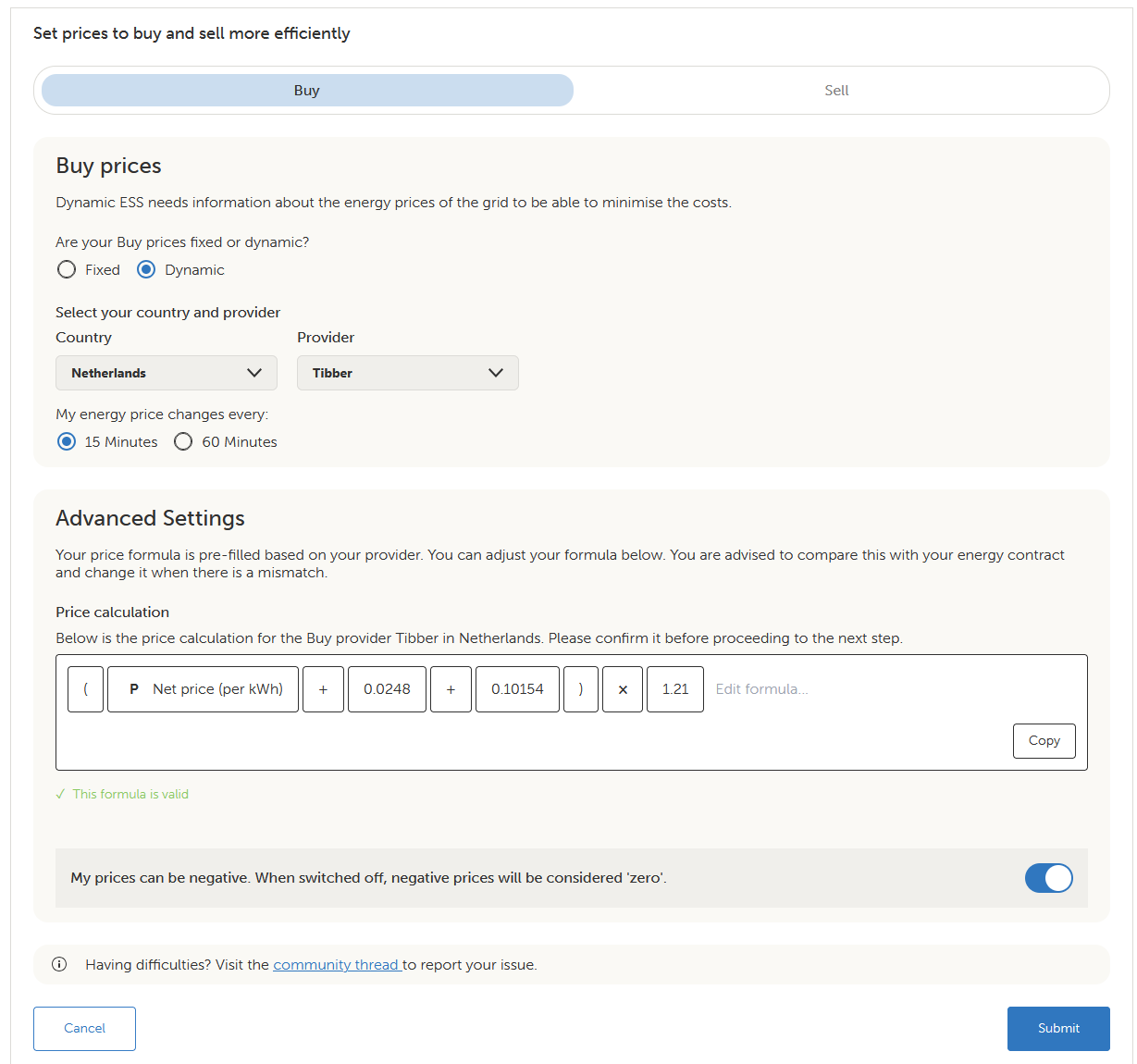
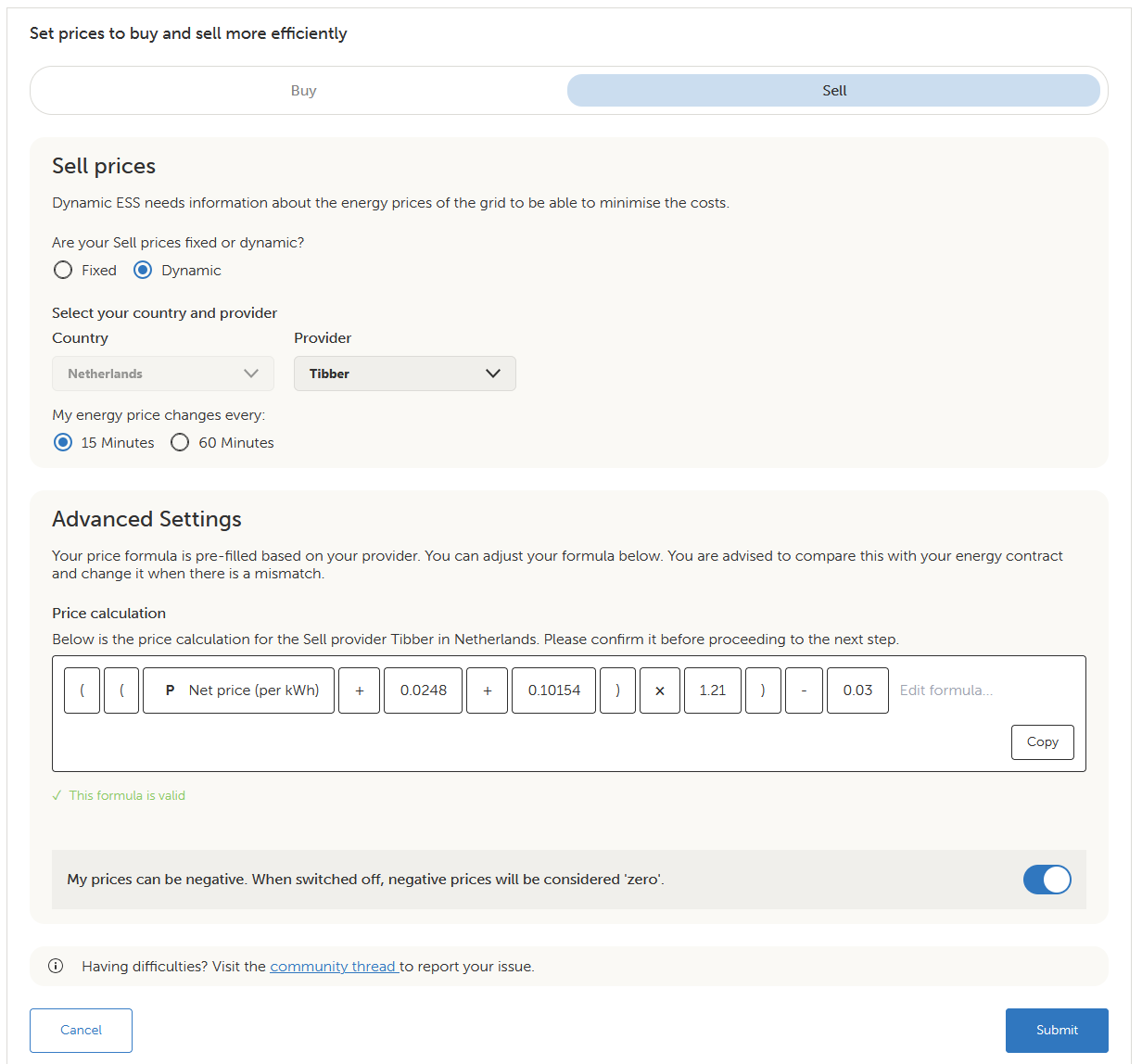
Select Fixed or Dynamic prices as applicable, then choose the correct country and provider. The guide illustrates Netherlands–Tibber; this is an example. Select the price interval that matches the contract, such as 15 or 60 minutes where available.
Check buying and selling separately. A suggested formula is a starting point: confirm that fees, taxes and other applicable components reproduce the prices you actually pay or receive. Compare several time periods with the provider’s published prices. A green validation mark confirms a formula is accepted, not that it matches your contract.
Why negative prices need a separate check. Configure the negative-price option according to the supplier’s rules. With it disabled, DESS treats a negative calculated tariff as zero. This applies separately to buying and selling and concerns the complete formula result. It is not simply a preference about whether negative market prices are attractive. Victron’s negative-price setting.
Activate and verify operation
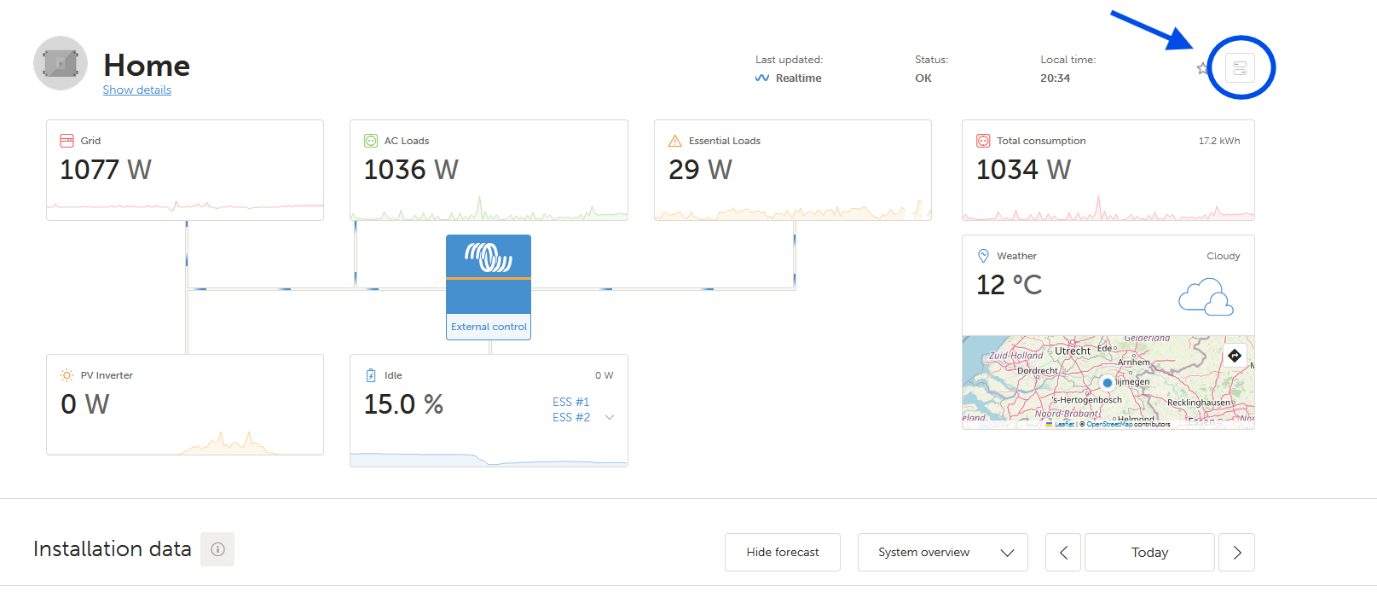
Submit the reviewed configuration. Open Controls and confirm that Dynamic ESS is on. For the procedure in this NKON guide, retain Optimized with BatteryLife as the ordinary ESS mode. Do not select the separate ESS External control mode merely because those words appear in the dashboard.
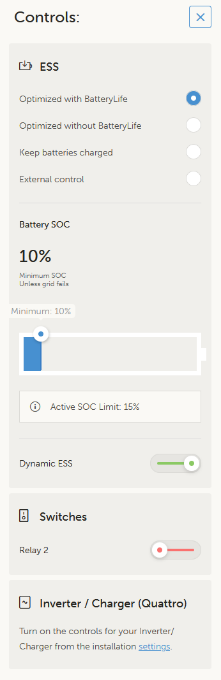
Check that VRM shows a valid DESS plan, current data and no relevant errors. Compare planned activity with actual battery and grid power over time. The dashboard’s External control status is part of the source example; that label alone does not establish that DESS is correctly configured. Avoid combining ordinary scheduled charging with DESS, because it interferes with the plan. Victron Dynamic ESS setup and troubleshooting.
Commissioning and handover checklist
A saved setting is not the same as a verified installation. After configuration, reopen the settings and confirm that the intended values remain stored. Then check the resulting behaviour under controlled conditions appropriate to the site.
Battery and communications
- Correct battery and BMS revision recorded.
- All expected battery modules online.
- Voltage, current, temperature and SoC readings plausible.
- CVL, CCL and DCL received and interpreted correctly.
- Alarms and BMS stop requests checked using the manufacturer’s approved test procedure.
- CAN interface, speed, cable and termination recorded.
Power flow and operation
- Grid meter role, phase assignment and import/export direction verified.
- Charging current checked with all relevant charging sources.
- ESS mode, reserve, peak shaving and export settings confirmed.
- Backup circuits and the approved outage test documented.
- MPPT participation and local limits checked where installed.
- VRM shows current readings, and DESS has a valid plan where enabled.
Keep a configuration backup and a handover record with firmware versions, battery capacity, current limits, grid limits and the reason for each installation-specific choice. Explain to the owner which settings they may adjust and which require installer review.
For a problem that needs support, include the battery model, BMS and Venus OS versions, module count, recent alarms, relevant settings and screenshots of the live battery parameters. Contact [email protected]. Share only the installation information needed to diagnose the issue.
Troubleshooting common questions
Start by comparing the requested operation with the live limits and measured power flow. Avoid raising limits simply to make a warning or restriction disappear.
The battery does not appear in the GX device list
Check that the battery is powered, CAN_VICTRON is selected, the correct Type A cable is connected in the correct direction, and the chosen GX interface uses the 500 kbit/s battery profile. Verify the required termination and that the cable is not in a VE.Bus or Ethernet socket. With several batteries, also check master/addressing instructions and module communications.
The battery charges slowly or stops before the expected percentage
Read CCL, CVL, cell voltages, temperatures and active alarms. Then check the configured charger limits, current household demand and solar availability. A near-full battery can request less current. If the behaviour is persistent or unexplained, compare it with the exact battery revision’s guidance rather than forcing a higher charge voltage.
The battery has energy remaining but will not discharge
Compare SoC with both the configured minimum and the active BatteryLife limit. Check DCL, any BMS discharge block, the ESS mode, inverter power limit and DESS plan. “Keep batteries charged” intentionally behaves differently from self-consumption mode. The active reserve can be higher than the minimum shown in another menu.
The charge-voltage target changes by itself
Check the managed battery’s CVL. A live BMS command can differ from the locally stored absorption or float setting. It is the appropriate place to start when explaining a changing target; the screenshot value alone is not the operating specification for every system.
The grid meter shows the wrong direction or strange phase readings
Have the installer check the meter role, measurement location, phase mapping and CT direction against the installation. Verify readings with a known load before relying on automatic import/export control. A data connection that works does not establish that the electrical measurements are correct.
Dynamic ESS is enabled but there is no useful schedule
Check the VRM connection, current data, system time, accepted tariff configuration, battery SoC and any DESS error. Review power/capacity entries and restrictions, and remove competing scheduled-charge control where appropriate. Confirm the current VRM instructions for the installed firmware. “External control” in the diagram is not sufficient proof of a working plan.
The system exports even though I entered a low DESS export value
The DESS wizard describes planning capabilities. Its entries are not a substitute for the system’s actual feed-in/current limits or hardware protection. Have the installer verify the relevant GX settings, meter readings and solar-inverter configuration against the permitted site behaviour.
The battery stays full during a period when prices suggest discharging
Check whether a balancing charge, reserve requirement, battery protection or operating mode is active. A price-based opportunity is only one input to the control system. Confirm that the tariff formula also reflects the actual buying and selling costs.
Do I need to reconfigure the system after adding a battery?
Review the permitted parallel arrangement, module communications, total capacity and BMS-reported limits. Update capacity entries where needed, including the ESS Assistant and DESS settings. Recheck current limits and protection. Additional stored energy does not automatically increase the inverter’s power rating or the grid connection’s capacity.
The terms used in this guide
- ESS
- Energy Storage System. In Victron terminology, the configured system that manages battery storage and power exchange.
- DESS
- Dynamic ESS. Planning that uses tariffs, forecasts and installation capabilities to schedule operation.
- BMS
- Battery Management System. The battery’s monitoring and protection system, which communicates operating limits.
- GX and Venus OS
- The GX device is the system controller/monitor; Venus OS is its operating software.
- DVCC
- Distributed Voltage and Current Control. Coordination of supported chargers using shared system and managed-battery information.
- VRM
- Victron Remote Management. The online portal for monitoring and supported remote configuration.
- kWh, kW and A
- kWh measures energy capacity; kW measures power; A measures current. They are not interchangeable.
- Ah
- Ampere-hours. Charge capacity; multiplying Ah by nominal voltage gives an approximate energy capacity in Wh.
- AC-coupled PV
- Solar generation connected through a PV inverter to the AC installation.
- DC-coupled PV
- Solar generation connected through an MPPT charger to the battery/DC side.
Manuals and technical references
This page expands the supplied Victron & NKON ESS Word and PDF manual. Its 41 distinct body illustrations are retained, with the repeated system diagram shown once. The original screenshots are unchanged; names, example readings, tariff constants and menu layouts may differ from the installed system.
Battery-specific values come from that NKON guide unless stated otherwise. General explanations were checked against the following manufacturer resources. Use the latest documentation for the actual model and firmware.
- NKON ESS Pro 32.15 kWh product information and Documents tab
- Victron ESS design and installation manual
- Victron GX manual: DVCC
- Victron CAN-bus BMS cable reference
- VM-3P75CT meter manual
- Victron Dynamic ESS manual (draft documentation)
- VRM feature and interface changes
Technical reference review: 28 October 2025. Screenshots originate from the supplied manual and may show earlier software versions.